This guide is for the person helping a parent or grandparent. You set it up once and they just turn on the TV: a channel is already playing and they change channels with the numbers on the remote.
1. Install the app and add the playlist
- Install MXTV Player on the TV (see Download).
- Open it and tap Generate code. The TV shows you a code.
- On your phone go to mxtvplayer.com/lists, type the code and the playlist details your provider gave you.
- Go back to the TV: the playlist loads by itself.
2. Switch to simple mode
With the remote, go to:
› › ›
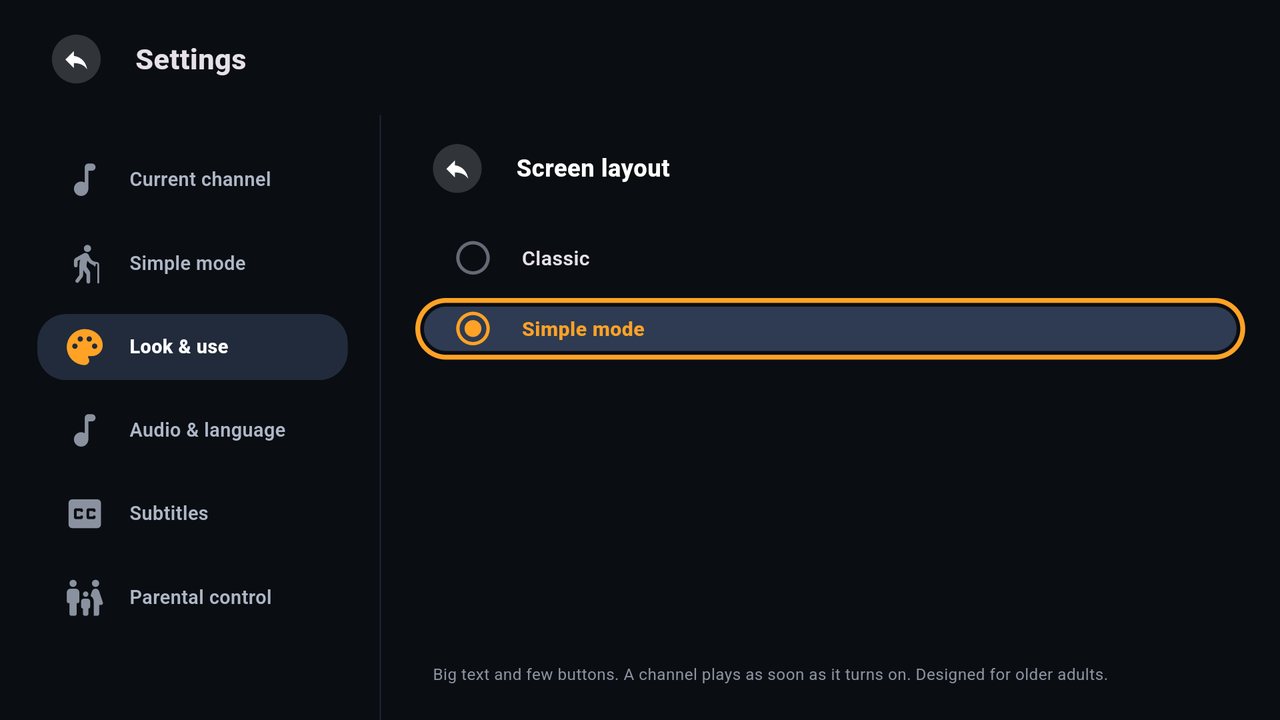
3. Choose their channels and numbers
Go to › › . Everything they will see is there:
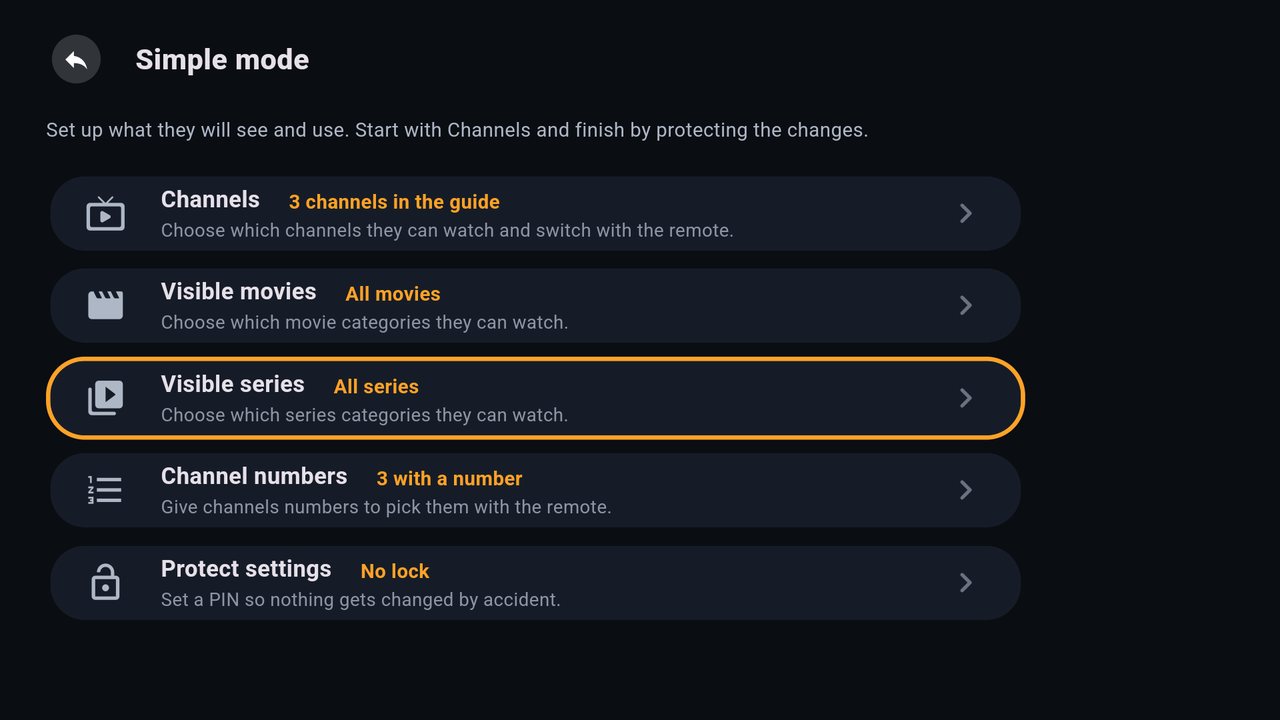
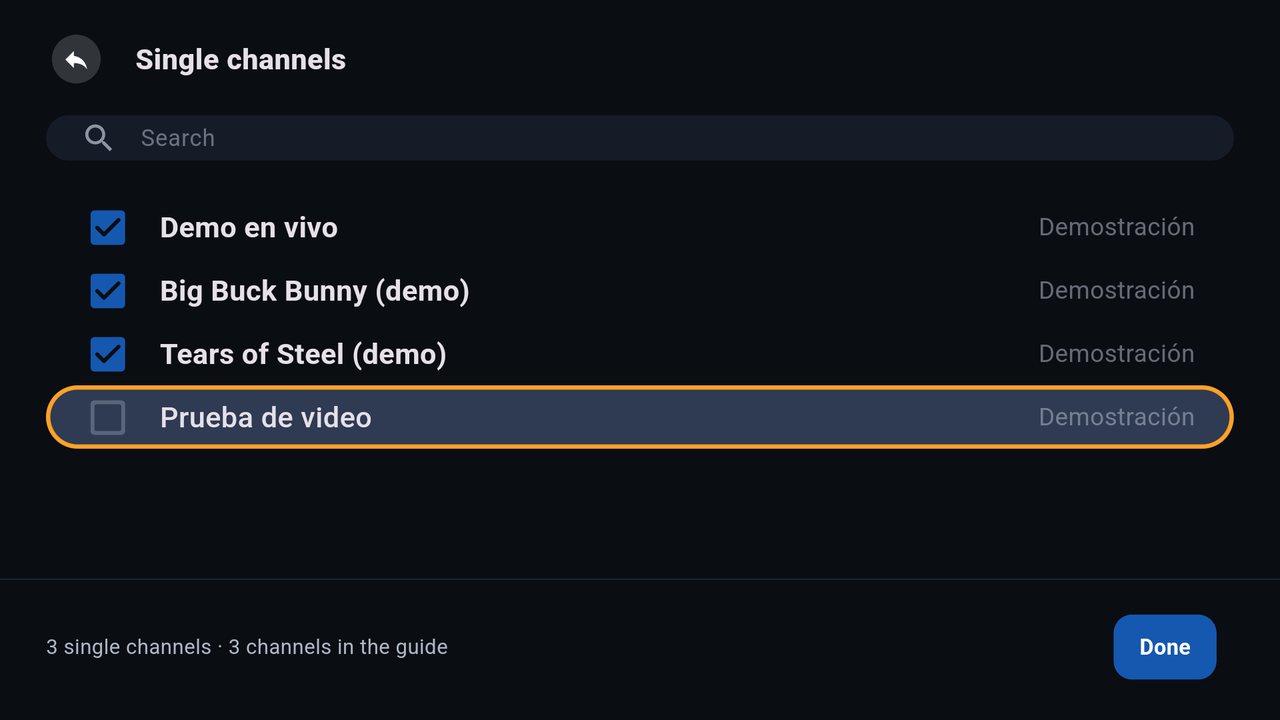
- Channels: in Whole categories or Single channels, check only the ones they watch. If nothing is checked, all of them show.
- Visible movies and Visible series: keep only the categories they like.
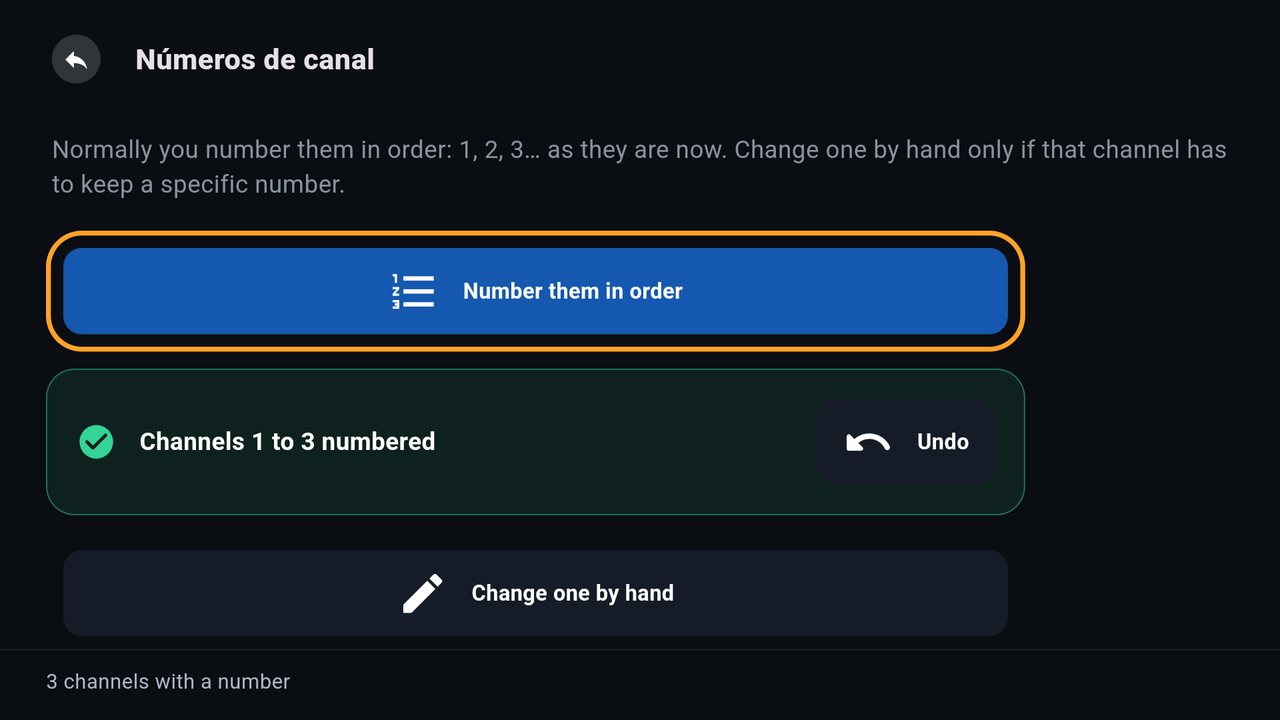
- Channel numbers: tap Number them in order to get 1, 2, 3… If a channel needs a number they already know by heart, use Change one by hand.
4. Adjust it for them
In › :
- Text size: Big or Extra big, to read from far away.
- Channel with no picture: «Skips to the next one» so it never stays on a black screen.
5. Add the lock
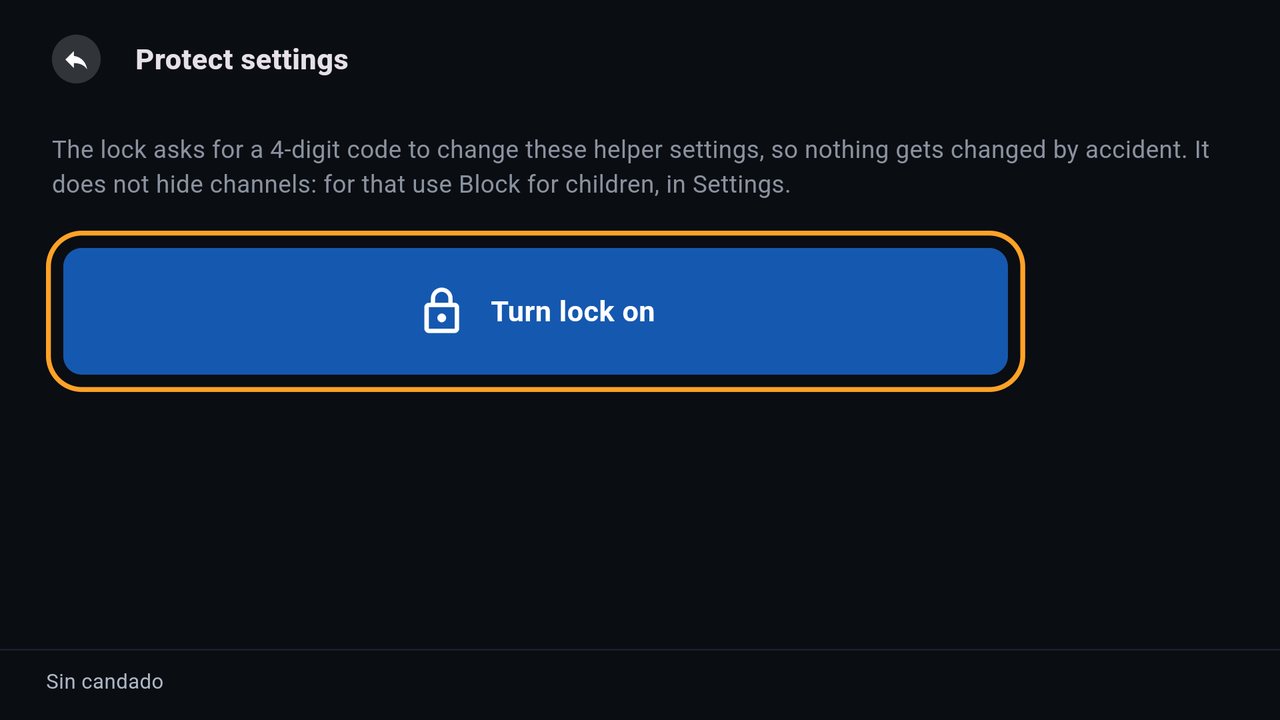
Last, in Protect settings tap Turn lock on and pick a 4-digit code. If someone opens the settings by accident, nothing can be changed. Only you know the code.
How they use it
These are real screenshots of the app. The channels shown are examples and are not provided by MXTV Player.
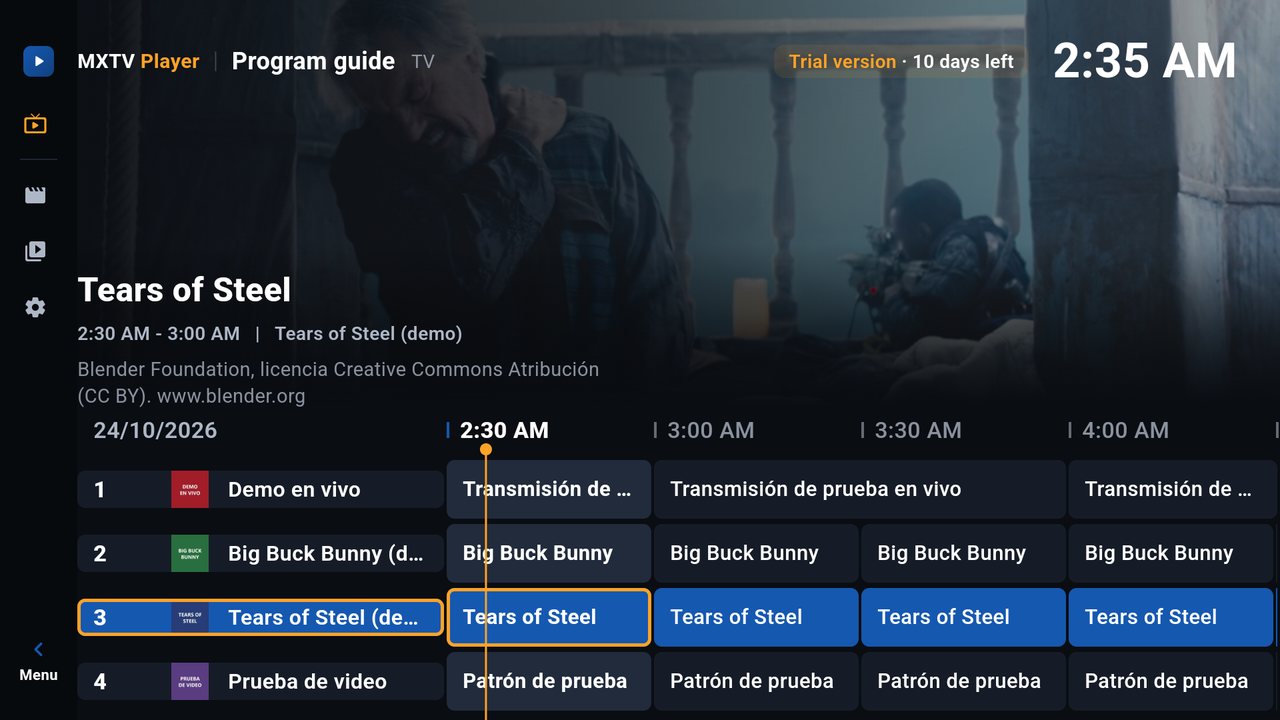
The program guide
When the TV turns on, the guide shows up. The current channel plays at the top and the list is below: number, logo, name and what is on. The up and down arrows pick another channel.
Full screen (how to maximize)
- With the remote: press OK on the channel.
- On a phone or tablet: tap the video at the top.
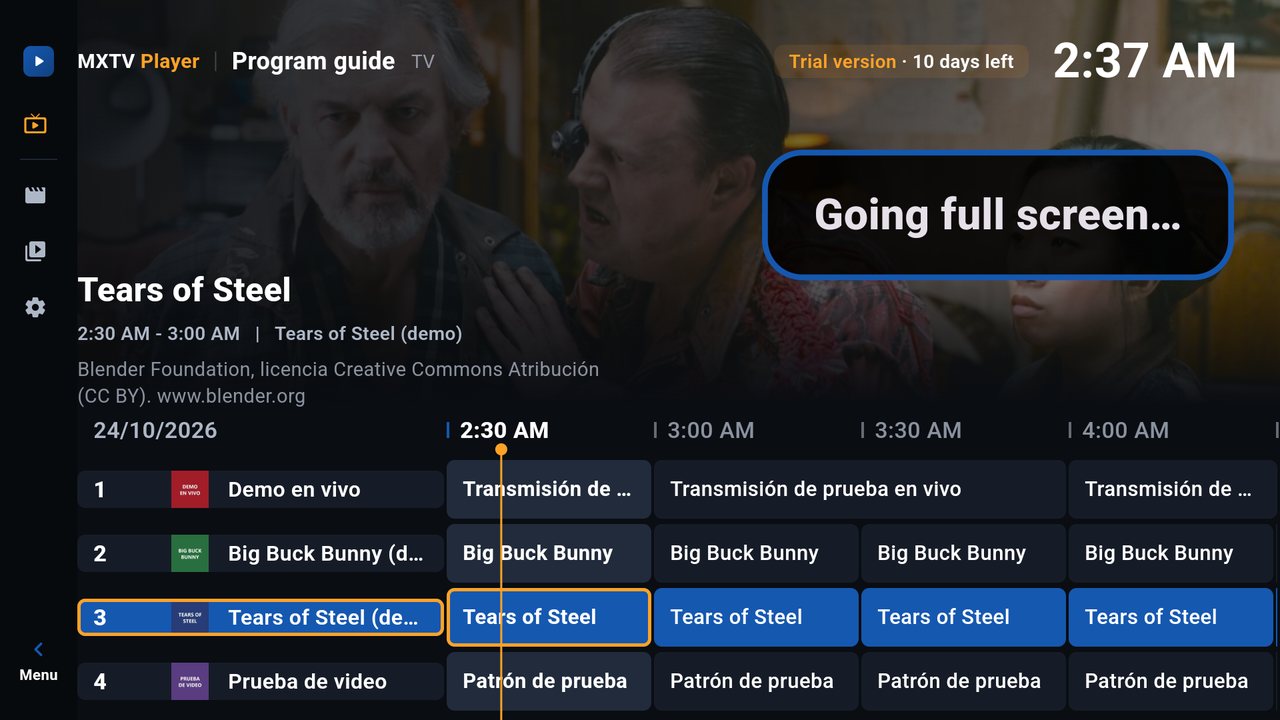
- By itself: if nobody touches anything, after a minute «Going full screen…» shows up and the channel maximizes.
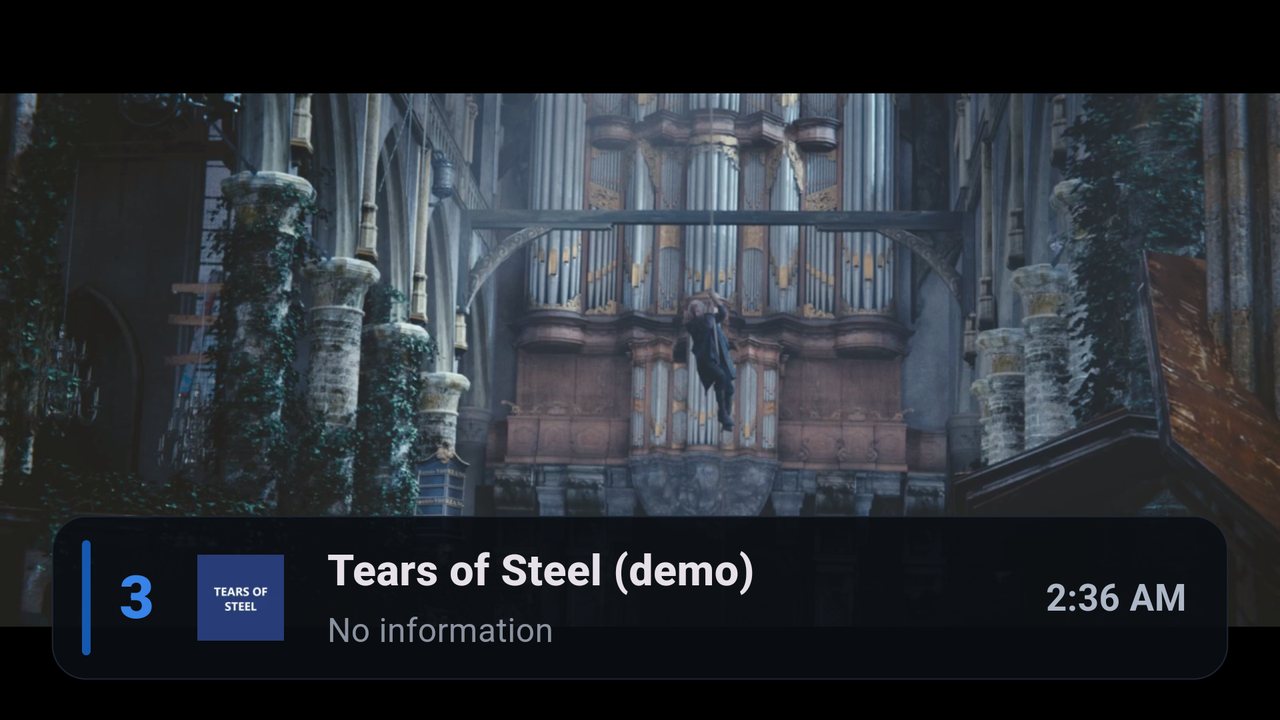
In full screen only the channel shows, with no buttons on top:

Pressing OK again shows the channel bar at the bottom: number, name, what is on and the time.
- Back to the guide: the Back key on the remote.
- On a phone or tablet: tapping the screen shows an arrow to go back to the guide, the brightness and volume bars, and at the bottom the Guide, Pause and video size buttons (plus Audio and Subtitles when the channel has them).
Changing channels
- Up and down arrows or channel + and −: goes to the next one and the bar shows the new channel.
- Numbers on the remote: type the number and it changes by itself, nothing else to press.
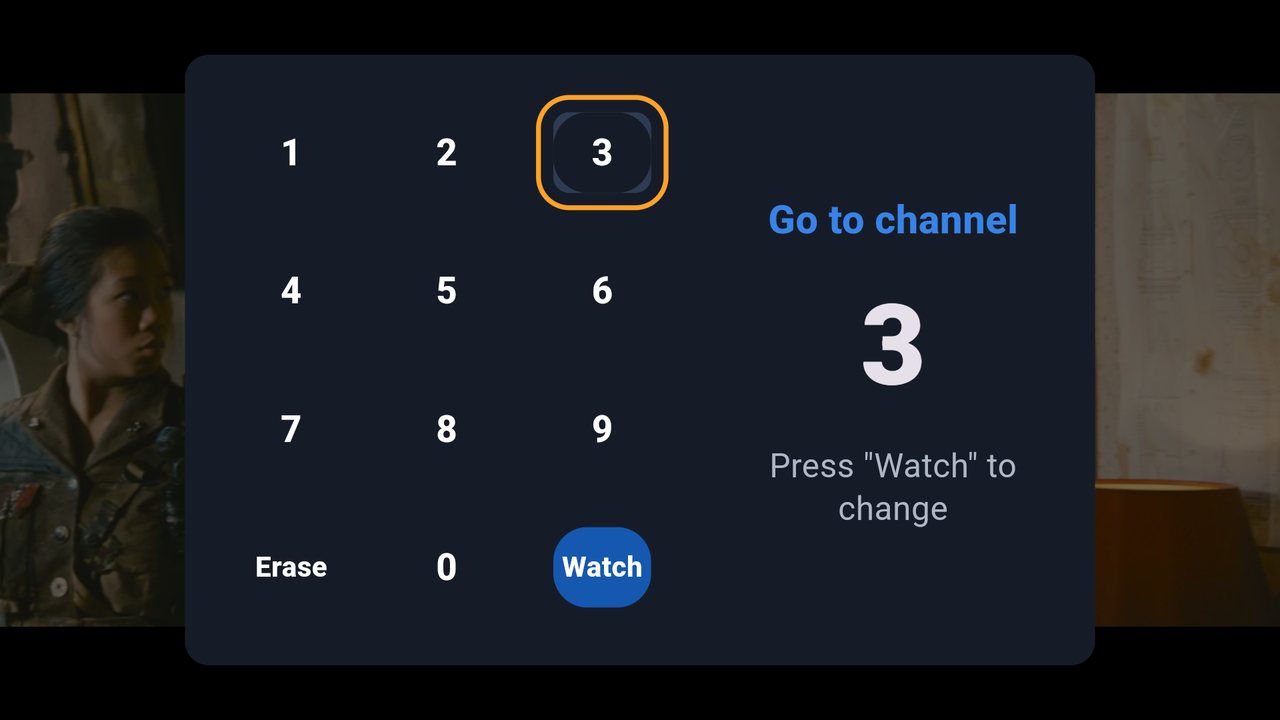
The side menu
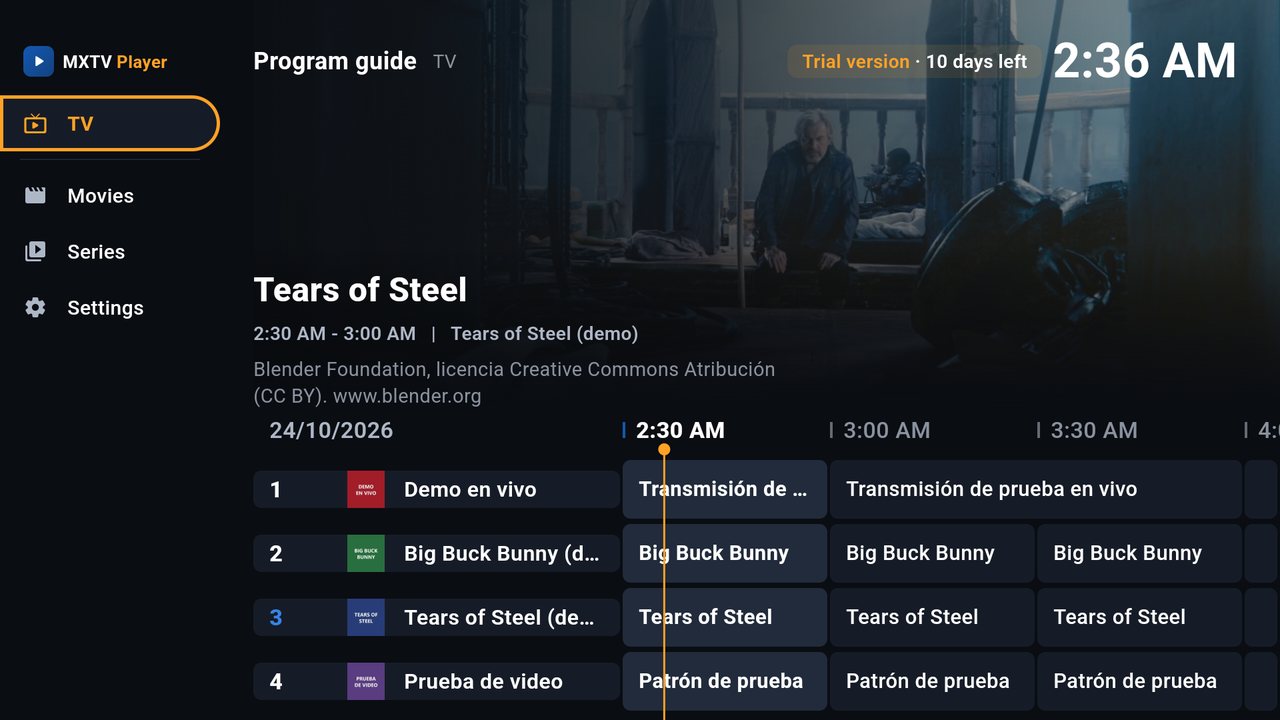
In the guide, the Back key (or the left arrow) opens the menu on the left: TV, Movies, Series and Settings. Closed, it only shows the icons. Pressing Back again, the app asks whether to exit.
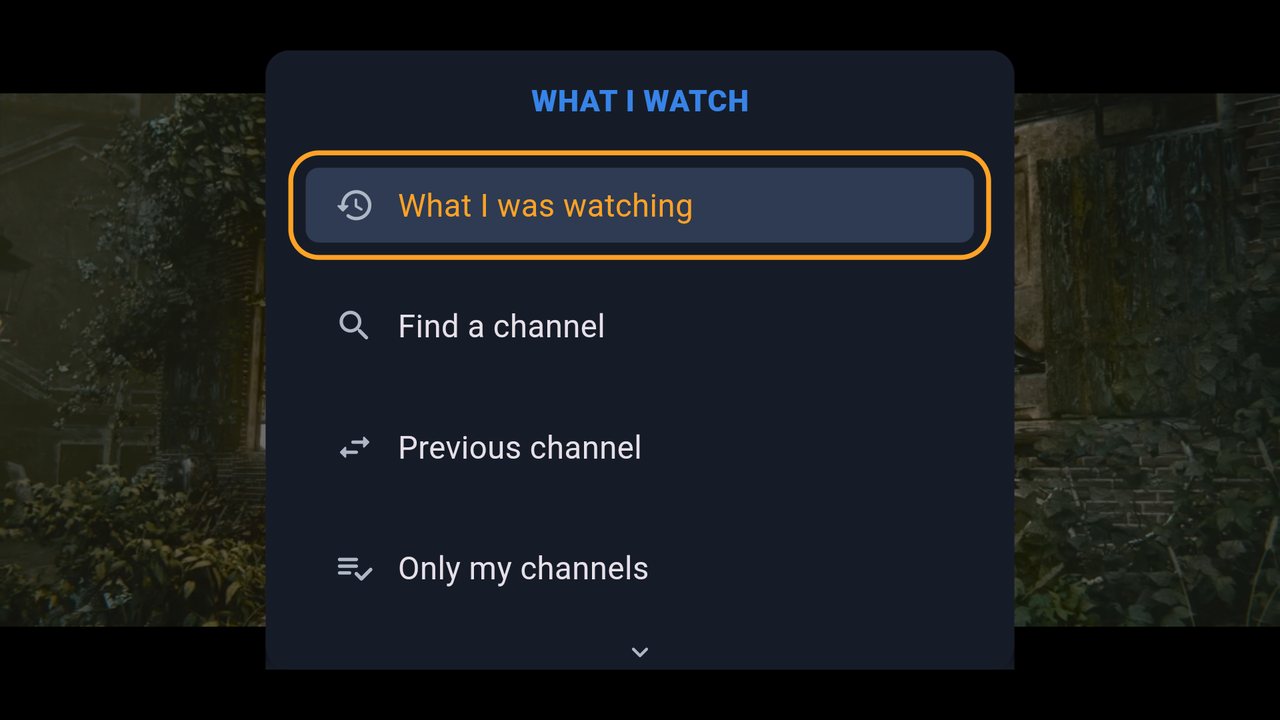
The «What I watch» menu
With the Menu key on the remote, in full screen, this menu shows: What I was watching, Find a channel, Previous channel, Only my channels and Larger text. At the end is Settings (for whoever helps me), which is for you.
If the internet drops
The channel comes back by itself. No need to touch anything.
Stuck on something? Write to us from Support.